Developer Manual
Software Requirements
The following softwares are needed to be installed:
- Python3
- tkinter
- openepyxl
- Sphinx
sudo apt-get install python3
sudo apt-get install python3-tk
pip3 install pyexcel
pip3 install xlwt
pip3 install xlsxwriter
pip3 install xlrd
pip3 install openpyxl
pip3 install ezodf
pip3 install python-docx
pip3 install pyexcel-ods
Sphinx installation in needed in case you want to work on the documentation
pip install sphinx
Note that to compile the changes made to the documentation you have to move to the docs folder and compile your changes
cd docs/
make html
The file will be changes in the build/html folder
For more information on working with sphinx you can refer: https://www.sphinx-doc.org/en/master/index.html
Bug Reports and Feature Requests
If you have encontered a problem with the application or have an idea for a new feature, please submit it as an issue tracker on Github.
After getting approval from a moderator, you may make a pull requests to the repository.
Contributing on the Project
The recommended way for new contributors to submit code to Sphinx is to fork the repository on GitHub and then submit a pull request after committing the changes. The pull request will then need to be approved by one of the core developers before it is merged into the main repository.
- Clone the Repository
- Working on any of the given modules:
- GUI#1
- GUI#2
- Documentation
Getting Started
These are the basic steps needed to start developing on the application.
- Create a Github Account.
- Got to the given link
- https://github.com/PS-Ddevil/Time-table-assist-tool
- Click on the fork option to make a copy of the repo on your profile
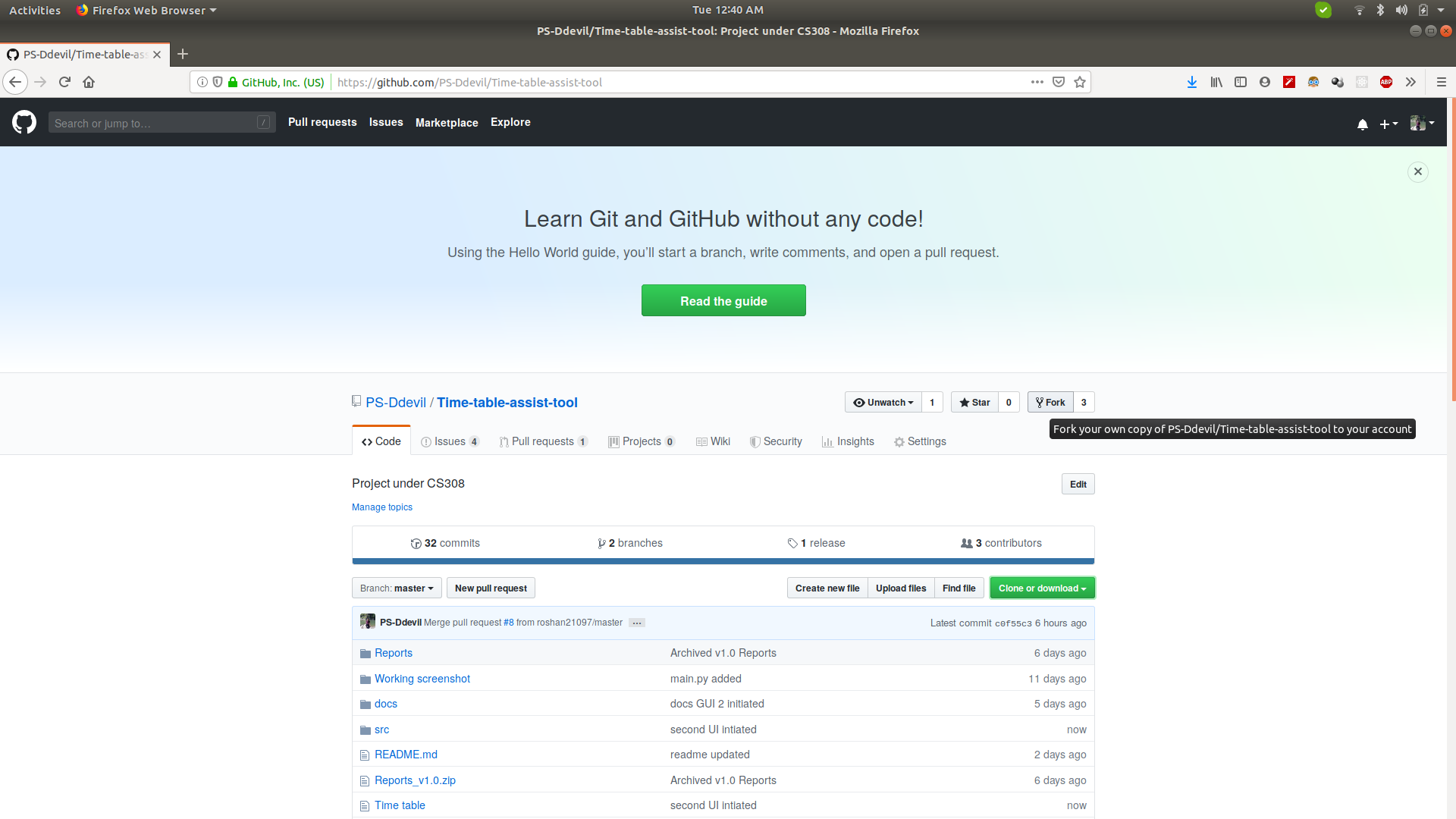
- Go to a desired location on you local system(PC).
- Open the terminal by pressing Alt+Ctrl+T
- Run the command
git clone https://github.com/<git-username>/Time-table-assist-tool.git
where <git-username> refers to the Username of your Github profile
- Check out the branch to work on. By default the master branch in selected.
git checkout v2.0
- To create a new branch to work on.
git checkout -b branch-name
- Incase you fix some issue you can commit the changes.
git commit -m "Some XYZ changes"
- Push changes in the branch to your forked reposiory on the Github.
git push origin branch-name
- Submit a pull request from your branch to the respective branch (master or X.Y).
- Wait for a core developer to review your changes.
Tree Structure
.
├── docs
│   ├── build
│   │   ├── doctrees
│   │   ├── html
│   │   └── latex
│   ├── make.bat
│   ├── Makefile
│   └── source
│       ├── change.rst
│       ├── conf.py
│       ├── contributors.rst
│       ├── developer.rst
│       ├── help.rst
│       ├── img
│       ├── index.rst
│       ├── license.rst
│       ├── _static
│       ├── _templates
│       └── user_manual.rst
├── main.py
├── progs
│   ├── CourselistAug-Dec2019_2Sep.ods
│   ├── func
│   │   ├── checktheory.py
│   │   ├── extract_docxs.py
│   │   ├── extract_ods.py
│   │   ├── initialize_excel_files.py
│   │   ├── __init__.py
│   │   ├── __pycache__
│   │   ├── read_create.py
│   │   ├── save.py
│   │   ├── tlist.py
│   │   └── undo.py
│   ├── __init__.py
│   ├── prog1.py
│   ├── prog2.py
│   ├── prog3.py
│   └── __pycache__
│       ├── __init__.cpython-36.pyc
│       ├── prog1.cpython-36.pyc
│       └── prog2.cpython-36.pyc
├── README.md
├── Reports
│   ├── DD_v1.0.odt
│   ├── README_v1.0.md
│   └── SRS_v1.0.odt
├── Reports_v1.0.zip
├── src
│   ├── data
│   │   ├── basket_elective_docxs
│   │   ├── ClassroomSeatingCapacity.docx
│   │   ├── Courselist.ods
│   │   ├── ExampleElectiveCoursesGrouping.docx
│   │   └── slot.xlsx
│   ├── logo
│   │   └── iitmandilogo.jpg
│   └── tmp
│       ├── baskets
│       └── slot.xlsx
└── tree.txt


20 directories, 39 files
Working with Landing GUI
Move to the cloned the folder
cd Time-table-assist-tool
Open the main.py file.
Open the main.py file in any text editor of your choice
For Sublime Editor:
subl main.py
For Atom Editor:
atom main.py
For Visual Studio Code:
code main.py
There are three broad sections in the code
- Fuction for different GUI
- GUI Development
SECTION 1:
# Including the files for different GUIs
def TimeTable():
    os.system("python3 progs/prog1.py")
    print(os.getcwd())
def SlotSlection():
    os.system("python3 progs/prog2.py")
    print(os.getcwd())
def ClassSelection():
    os.system("python3 progs/prog3.py")
def Initialise():
    os.system("python3 progs/func/extract_docxs.py")
    os.system("python3 progs/func/extract_ods.py")
    os.system("python3 progs/func/read_create.py")
SECTION 2:
master = Tk()
master.title("Time Table Assist Tool")
frame=Frame(master,bd=10,height=500,padx=10,pady=10,width=1500)
frame.pack()
B = Button(frame, text ="Initialise", command = Initialise)
B.grid(row=0,column=0,columnspan=3,sticky=W+E+N+S)
B.config(width=45)
B = Button(frame, text ="Slot Selection", command = SlotSlection)
B.grid(row=1,column=0,columnspan=3,sticky=W+E+N+S)
B.config(width=45)
B = Button(frame, text ="Class Selection", command = ClassSelection)
B.grid(row=2,column=0,columnspan=3,sticky=W+E+N+S)
B.config(width=45)
B = Button(frame, text ="Time Table", command = TimeTable)
B.grid(row=3,column=0,columnspan=3,sticky=W+E+N+S)
B.config(width=45)

mainloop()
- To add a new GUI include it into the Function in continuation inside section 1 in the given format.
def Function():
os.system("python3 progs/progx.py")
Working on GUI#1
Move to the cloned the folder
cd Time-table-assist-tool/progs
Open the prob1.py file.
Open the prob1.py file in any text editor of your choice
For Sublime Editor:
subl prob1.py
For Atom Editor:
atom prob1.py
For Visual Studio Code:
code prob1.py
There are three broad sections in the code
- GUI Development
- Slot management algorithm section
- Slot rendering section
SECTION 1:
# DEFINING THE GUI ELEMENTS
Label(master, text='').grid(row=0)
Label(master, text='8:00 - 8:50',borderwidth=2, relief="solid",bg='red').grid(row=0,column=1)
Label(master, text='9:00 - 9:50',border......
SECTION 2:
# THIS SECTION DEFINES THE ALGORITHM TO UPDATE THE OPTIONS IN THE GUI
def update_options(var, row_val):
    cr = cr_vars[var].get()
    if cr=='SLOT':
        return
    if(old_var[var] == cr):
        return 0
    if match[row_val][ord(cr)-65] == True:
        cr_vars[var].set("SLOT")
        messagebox.showerror("Err......
SECTION 3:
# THIS SECTION DEFINES THE RENDERING OF THE SLOTS IN THE GUI'S TIMETABLE MATRIX
for i in range(1,6):
    for j in range(1,10):
        cr_vars.append(StringVar(master))
        cr_vars[z].set("SLOT")
        old_var.append("SLOT")
        left_course = ['A', 'B'...
- Modify the code accordingly and commit changes when necessary.
Working on GUI#2
Move to the cloned the folder
cd Time-table-assist-tool/progs
Open the prob1.py file.
Open the prob1.py file in any text editor of your choice
For Sublime Editor:
subl prob1.py
For Atom Editor:
atom prob1.py
For Visual Studio Code:
code prob1.py
There are Three broad section for the GUI#2
- DropDown Function
- ConstraintCheck Function
- Display GUI
- DialogBOX
SECTION 1:
def DropDown():
    global lists,v
    v.set("Select File")
    w = OptionMenu(frame1, v, *lists)
    w.grid(row=1,column=0,columnspan=3,sticky=W+E+N+S)
    w.config(width=45)
    v.trace("w", DisplayGUI)
SECTION 2:
def ConstraintCheck(var,i,name,focus,*args):
    global file_path
    wb = openpyxl.load_workbook(str(os.path.join(file_path, v.get())))
    ws = wb.active
    j=0
    for j in range(2,ws.max_row+1):
        c1=ws.cell(j,5)
        if i==j:
            continue
        if c1.value==var.get():
            messagebox.showerror("Err...
SECTION 3:
def DisplayGUI(*args):
    global file_path
    for widget in frame2.winfo_children():
        widget.destroy()
    wb = openpyxl.load_workbook(str(os.path.join(file_path, v.get())))
    ws = wb.active
    slots=['Slot A','Slot B','Slot C','Slo...
SECTION 4:
def DialogBox():
   global file_path
   file_path=filedialog.askdirectory()
   global lists, v
   a=str(os.path.join(file_path, "track.xlsx"))
   wb = openpyxl.load_workb....
- Include the required packages in the top of the file
# Include your packages here
from tkinter import *
from tkinter import messagebox
import os
import openpyxl
from tkinter import filedialog
Working on GUI#3
Move to the cloned the folder
cd Time-table-assist-tool/progs
Open the prob3.py file.
Open the prob3.py file in any text editor of your choice
For Sublime Editor:
subl prob3.py
For Atom Editor:
atom prob3.py
For Visual Studio Code:
code prob3.py
The following are function defintions
ConstraintCheck
Checks for the errors and display the required warning.
def ConstraintCheck(var,i,name,slot,*args):
    for j in range(len(slot)):
        if(i==j):
            continue
        elif(var.get()!="No Classroom" and var.get()==slot[j][1]):
            messagebox.showerror("Error", var.get() + " is twice time and it will not be saved so please change ")
            var.set(slot[i][1])
            return
    slot[i][1]=var.get()
Save
Saves the changes in the slot information
def Save():
    for file in lists:
        a=str(os.path.join(file_path, file))
        wb = openpyxl.load_workbook(a)
        ws = wb.active
        ws.cell(1,9).value="Classroom"
        for i in range(2,ws.max_row+1):
            if(ws.cell(i,8).value=="Slot A"):
                for j in range(len(slotA)):
                    if(slotA[j][0]==ws.cel...
Call
Code to display the various courses in a slot and the classroom to select from
def call(slot):
    w = Label(frame2, text="Course")
    w.grid(row=0,column=0,columnspan=1,sticky=W+E+N+S)
    w.config(width=15)
    w = Label(frame2, text="Classroom")
    w.grid(row=0,column=0,columnsp...
DisplayGUI
Calls the display function with different slots as argument
def DisplayGUI(*args):
    global file_path
    for widget in frame2.winfo_children():
        widget.destroy()
    if(v.get()=="Slot A"):
        call(slotA)
    elif(v.get()=="Sl...
DropDown
Go through the various baskets and collect the course information related to different slots.
def DropDown():
    global lists,v,slotA,slotB,slotC,slotD,slotE,slotF,slotG
    v.set("Select Slot")
    for file in lists:
        a=str(os.path.join(file_path, file))
        wb = openpyxl.load_workbook(a)
        ws = wb.active
        for i in range(2,ws.max_row+1):
            if(ws.cell(i,8).value=="Slot A"):
                if(ws.cell(i,9).value is None):
                    slotA.append([ws.cell(i,1).val...
DialogBox
Calls for the various baskets in the selected folder by selected all the excel sheets.
def DialogBox():
    global file_path

    for file in os.listdir(file_path):
        if file.endswith('.xlsx') and file!="course_faculty_main.xlsx"  and file!='course_faculty_optional.xlsx':
            a=str(os.path.join(file_path, file))
            lists.append(file)
    DropDown()
Functions
- All functions are defined in the progs/func.
- The following functions are being defined:
- extract_docxs
- extract_ods
- initialize_excel_files
- read_create
- save
- undo
- The Defintion and the role of the function are:
PARSE_ALL_DOCXS_TABLE
Location: progs/func/extract_docxs.py
Extract data from the docxs files into respective baskets.
def parse_all_docxs_table():
    path = 'src/data/basket_elective_docxs/'
    for filename in os.listdir(path):
        document = Document(path+filename)
        # Read from docs file
        for j in range(len(document.tables)):
            table = document.tables[j]
            data = []
            keys = None
            fname=""
            for i, row in enume...
EXTRACT (FACULTY)
Location: progs/func/extract_ods.py
Extract data from the ods file for the course and faculty.
def extract():
# pass
fname1='src/tmp/baskets/course_faculty_main.xlsx'
print(str(os.path.isfile(fname1)))
if str(os.path.isfile(fname1))=='False':
    print(os.path.isfile(fname1))
    workbook1=xlwt.Work...
INITIALISE_EXCEL_FILES
Location: progs/func/initialize_excel_files.py
Makes the time table to work with the GUI#1 if in case it do not exists.
def slot():
    fname='src/tmp/slot.xlsx'
    if os.path.isfile(fname):
        print('slot.xlsx is already there')
    else:
        print('slot.xlsx is created')
        workbook=xlwt.Workbook(fname)
        ws = workbook.add_sheet('Tested')
        workbook.save(fname)
        wb = openpyxl.Workb...
READ_CREATE
Location: progs/func/read_create.py
Read thriugh the institute spreadsheet for the courses and then seperate the core courses into baskets.
def read_create():
    file_name = "src/data/Courselist.ods"

    sheet =pyexcel.get_sheet(file_name=file_name)
    i=0
    for row in sheet:

        lists=str(row[3])
        lists=lists.split('-')
        if(lists[0]!="0" ):
            for p in range(len(row)):
                if(row[p]=='C'):
                    if(os.path.exists("src/tmp/ba...
SAVE_IN_EXCEL_SHEET
Location: progs/func/save.py
Save the current time table state into the excel sheet.
def save_in_excel_sheet(array):
    fname='src/tmp/slot.xlsx'
    workbook=load_workbook(fname)
    sheet = workbook.active
    for i in range(len(array)):
        if (i%9)+2!=6:
            sheet.cell(row = int(i/9)+2, column = (i%9)+2).value=array[i]
    workbook.save("src/tmp/slot.xlsx")
UNDO_IN_EXCEL_SHEET
Location: progs/func/undo.py
Extract the current save time table state into the GUI.
def undo_in_excel_sheet(cr_vars):
    # Give the location of the file
    filename = ("src/tmp/slot.xlsx")
    wb = xlrd.open_workbook(filename)
    sheet = wb.sheet_by_index(0)
    count=0
    for i in range(1,6):
        for j in  range(1,10):
            if(j!=5):
                cr_vars[count].set(sheet.cell_value(i,j))
            count=count+1
Core Developers
The core developers of the application have write access to the main repository. They can commit changes, accept/reject pull requests, and manage items on the issue tracker.
You do not need to be a core developer or have write access to be involved in the development of the application. You can submit patches or create pull requests from forked repositories and have a core developer add the changes for you.
The following are some general guidelines for core developers:
- Questionable or extensive changes should be submitted as a pull request instead of being committed directly to the main repository. The pull request should be reviewed by another core developer before it is merged.
- Trivial changes can be committed directly but be sure to keep the repository in a good working state and that all tests pass before pushing your changes.
- When committing code written by someone else, please attribute the original author in the commit message and any relevant CHANGES entry.
Branch Model
The branch are made when a new major portion is added into the application. Only minor changes and bug removal in the branch would be appretiated.
FAQs
1. How to add a new GUI to the project?
Following steps are to be followed when adding a new GUI to the project: 1. Initiate a GUI in the prog folder in the root directory.
- The convention for making a GUI in to name it as progx.py, where x is the next serial number for the program.
- Take reference from the existing GUI to get the information about the import and the writing style for the code.
- Add appropriate comments in the code sections.
- Every GUI need to have a opening link from the the main.py in the root directory.
- Check for the syntax to add in the main.py as defined above in section on working in main.py.
- After appropriate testing, commit the local changes.
- Open a new issue on master repo and on getting the approval from the owner/moderator you may push the code with the referce number of the issue.
2. How to work with the function?
All the function are defined at the path progs/func. You can define the funcion in seperate python files and then import it in the program according to your need.
3. Where in the data to processed stored in the application?
All the required files have been stored in src/data. You can put the data in the given folder to work upon. In case any new file in generated, they need to be placed in src/tmp.